v1.0.5 Performance & Stability
Volume Health scans now run one file at a time, avoid heavy decoding while the mixer is active, and no longer accumulate HTTP client resources during long browser sessions.
Use every GameMixer feature without an account, HWID, activation, license key, payment, or expiry date.
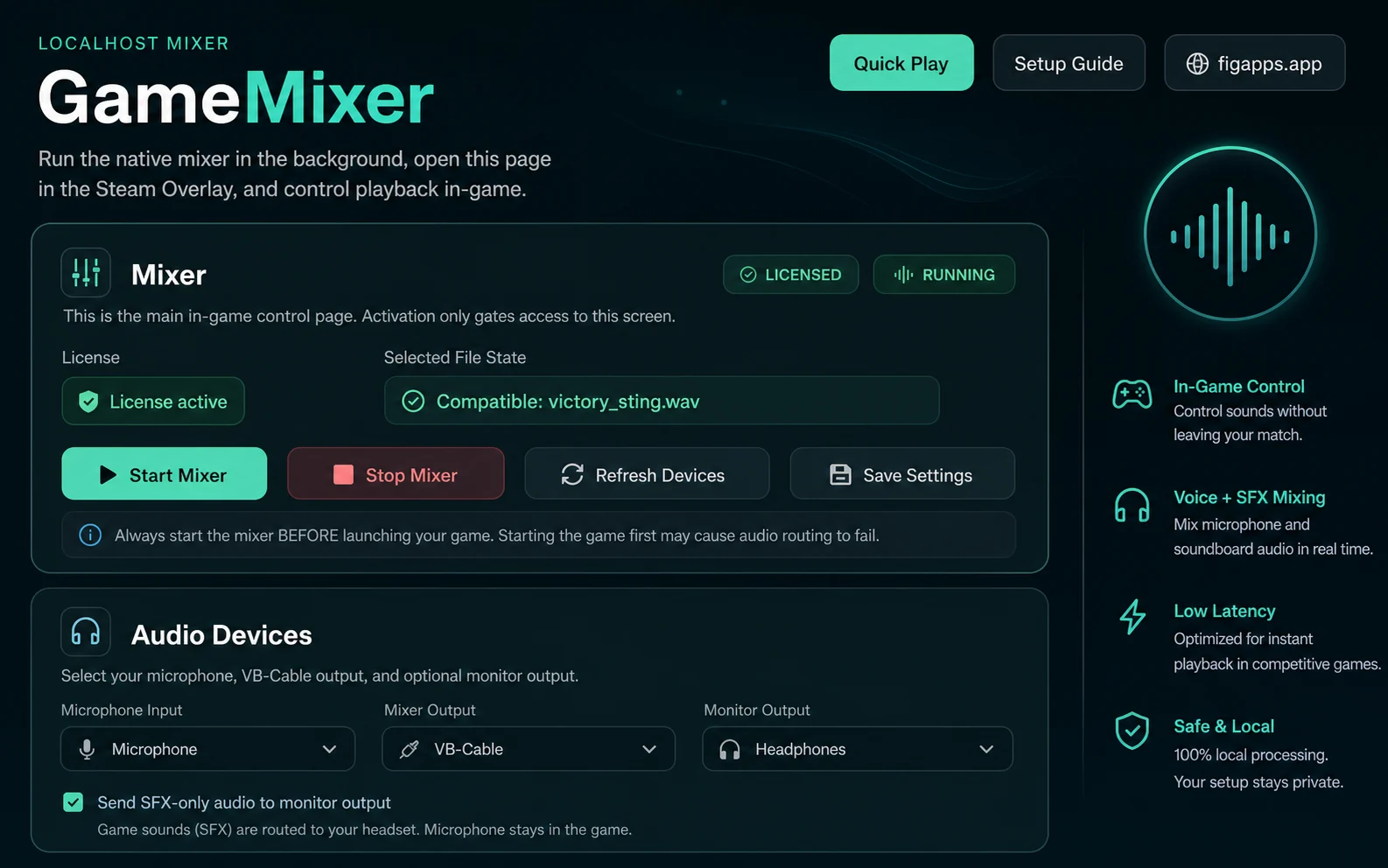
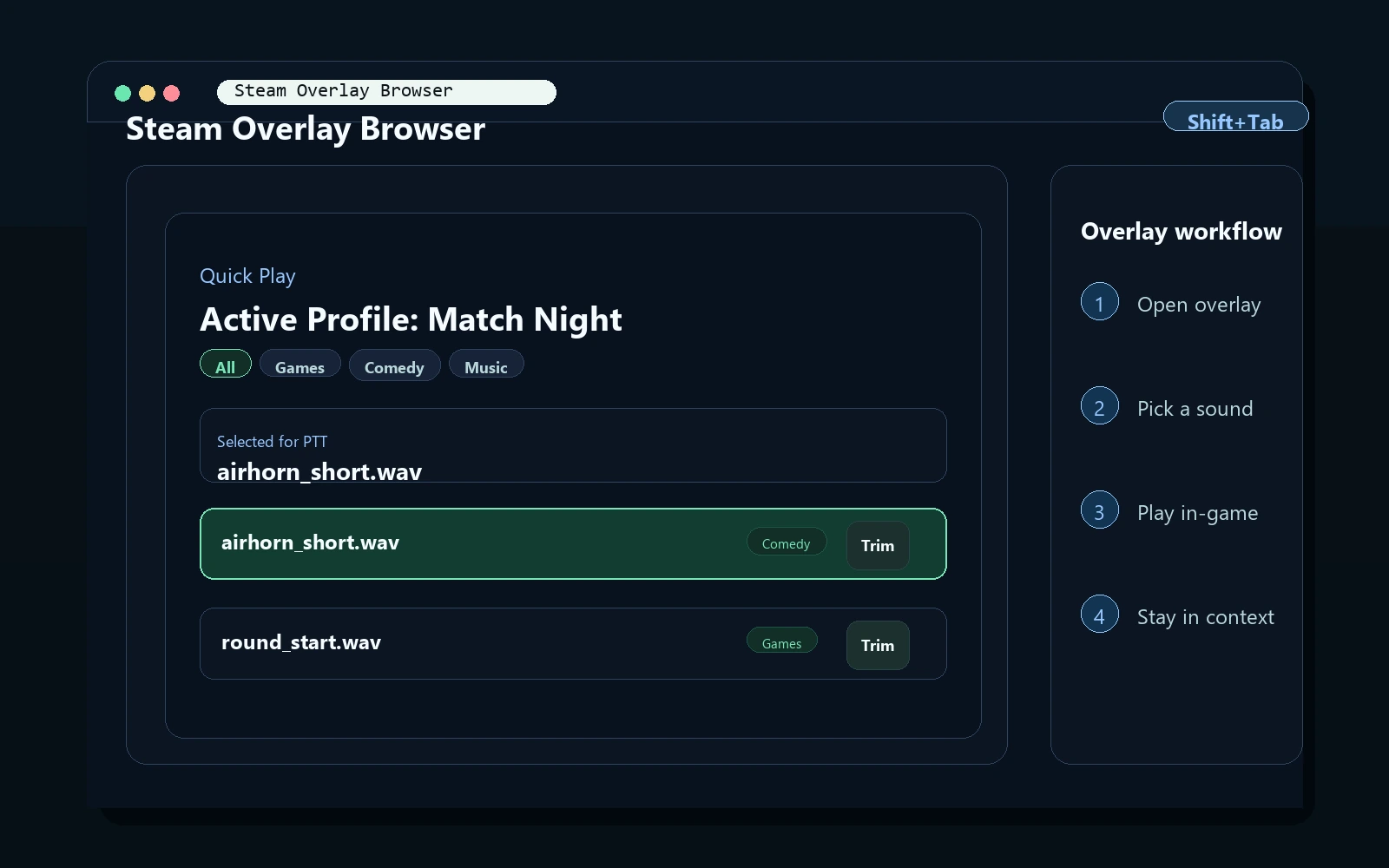
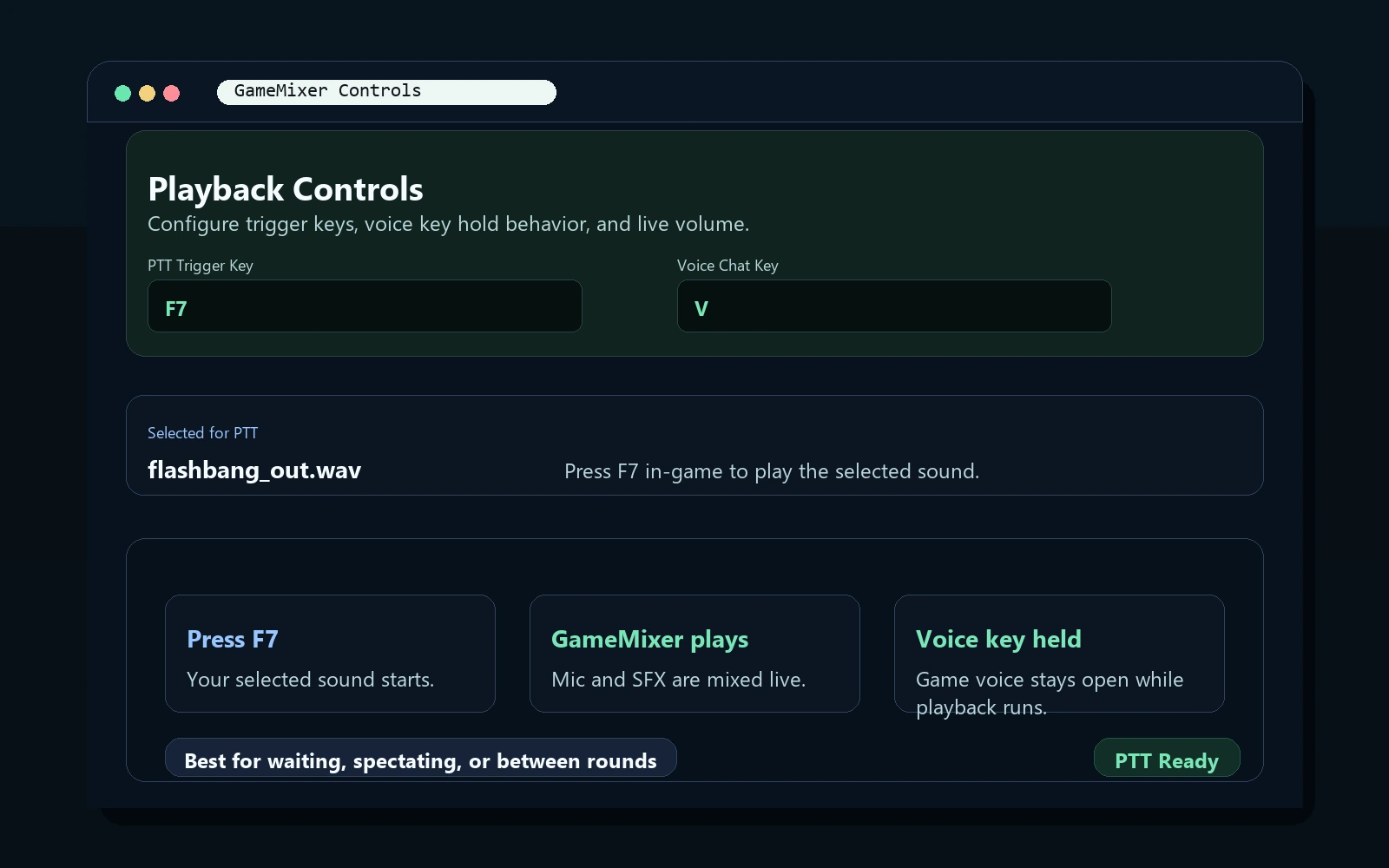
A guided setup verifies your local audio path before GameMixer switches it for a match.
Install the free 64-bit VB-CABLE driver and restart Windows when its installer asks you to.
Follow the step-by-step wizard to verify your microphone, VB-CABLE voice path, Windows input, sound files, and required hotkeys on this PC.
The guided fix configures managed Start/Stop audio switching after a working VB-CABLE route has been verified.
Start Mixer switches Windows input to the verified CABLE Output and warns if another app changes that route.
Leave Steam Voice Input on Default in most setups; the built-in Setup Guide includes Steam screenshots. Open the Overlay and use your soundboard, then Stop Mixer or exit to restore your physical microphone.
All existing mixer, Steam Overlay, audio preparation, and safety features are included without activation.
Volume Health scans now run one file at a time, avoid heavy decoding while the mixer is active, and no longer accumulate HTTP client resources during long browser sessions.
Delayed status and conversion responses no longer switch you back to a previously selected sound.
The step-by-step wizard verifies your local setup. VB-CABLE diagnostics explain common path failures and can recommend another working CABLE device.
Fix it for me prepares managed routing. Start Mixer selects the verified CABLE Output; Stop Mixer or app exit restores your physical microphone.
Detect-only monitoring warns you if Windows or another app changes the microphone path while GameMixer is running.
Use supported side mouse buttons for sound PTT, voice chat, and Panic hotkeys. Left and right click remain reserved for normal clicking.
Shape your live mic voice, use Record Mic Test for a 5-second sample, and save custom presets. Soundboard, PTT, and Panic clips stay unchanged.
Save custom sound-site links and let Sound Inbox watch a folder and prepare new supported audio for the active profile.
Trim Audio safely handles dotted filenames, adds .wav automatically, accepts decimal commas, and preserves full-range exports with added silence.
Clear filtered sound lists quickly with the dedicated clear X in the desktop library and Steam Overlay player.
Tested in the games below. GameMixer also works in other Steam games when the in-game Steam Overlay browser is available and the game supports microphone voice chat.
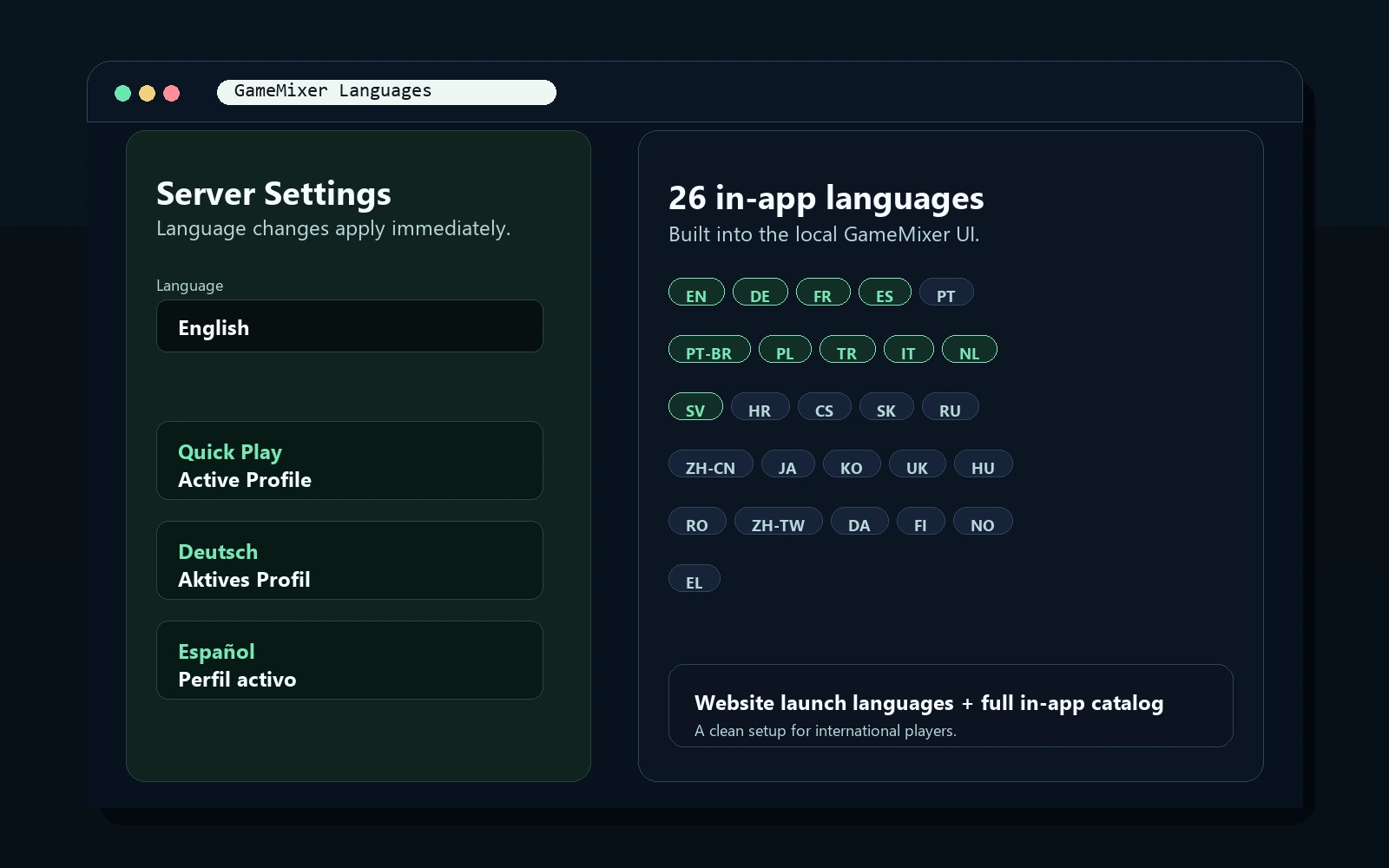
The GameMixer app UI supports 26 languages. The website language switcher starts with a focused commercial set.
English, Deutsch, Français, 한국어, Nederlands, Svenska, Italiano, Español, Português, Português (Brasil), Hrvatski, Polski, Čeština, Slovenčina, Русский, 简体中文, 日本語, Türkçe, Українська, Magyar, Română, 繁體中文, Dansk, Suomi, Norsk, Ελληνικά
GameMixer 1.0.6 is currently provided free of charge. Future versions or the business model may change, but this release has no hidden timer or expiry date.
Important setup, compatibility, and Free Edition details before you install.
Yes. GameMixer uses VB-Cable for reliable virtual microphone playback. The setup guide walks you through the one-time setup.
GameMixer is not yet code-signed, so Windows may show SmartScreen on first launch. If you choose to proceed, click "More info" and "Run anyway", and only use a copy downloaded from the official FiGapps website.
Yes. Core mixer features work locally without activation. Internet is only needed for optional update checks, website access, and third-party downloads.
MP3, WAV, FLAC, OGG, AAC, ADTS, M4A, WMA, ASF.
Complete Full Setup Check first, use Fix it for me if offered, and click Start Mixer before launching your game. If the game was already open, restart it after the mixer starts so it can pick up the verified audio route.
The Panic Button is an optional quick-trigger sound. Set a key, choose a sound, and GameMixer will play it when pressed. It is not an emergency stop.
No. Version 1.0.6 Free Edition does not require an account, HWID, activation, or license key.
Windows 10 and 11 (64-bit), including N and KN editions.